
Send HumanLayer Updates to Slack
Connect Slack to send HumanLayer task artifact updates into the channels where your team already works.
Choose what to send
A Slack automation sends selected events for selected users to a single Slack channel.
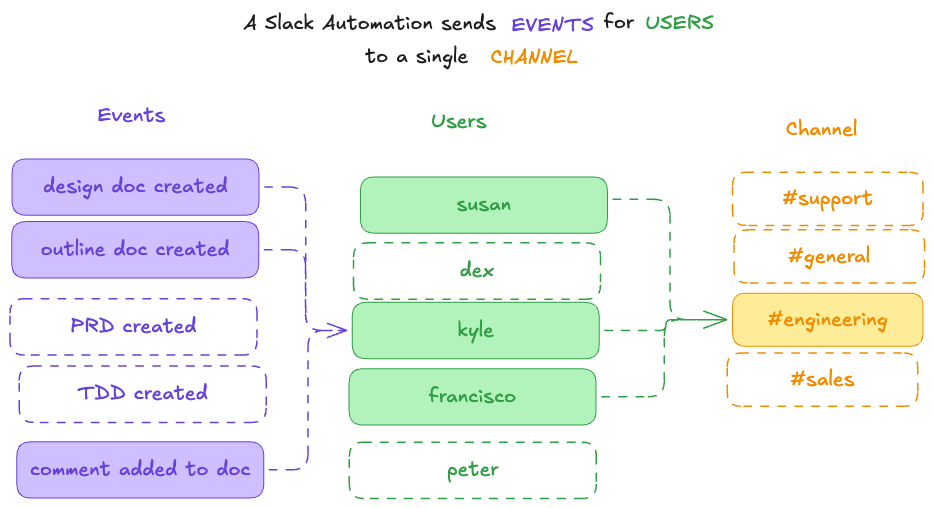
Use one automation when one channel should receive one set of updates. Create multiple automations when different teams need different event types, owners, or channels.
Before you start
- You must be an organization admin in HumanLayer.
- Your Slack workspace must allow you to install apps or approve the HumanLayer app.
- To notify private channels, invite the HumanLayer Slack app to each private channel after connecting.
Connect Slack
- Open HumanLayer in the browser.
- Go to Settings.
- In Integrations, find Slack.
- Click Connect Slack.
- Approve the Slack installation and return to HumanLayer.
- Confirm Slack shows as Connected.
If another admin needs to complete the installation, click Copy handoff URL and send the link to them.
Create an automation
- In Settings -> Integrations -> Slack, confirm Slack notifications are enabled.
- In Notification automations, enter an automation name.
- Choose the destination Slack channel.
- Choose the HumanLayer events that should post to Slack.
- Optionally filter by artifact owner.
- Click Create automation.
Event types
Slack automations can notify when HumanLayer creates or updates collaboration artifacts:
- Design discussion created
- PRD created
- TDD created
- Outline created
- Comment created
Give HumanLayer channel access
Public channels are available after Slack is connected. For private channels, invite the HumanLayer app from Slack:
/invite @HumanLayerThen return to HumanLayer and refresh the channel picker.
Check event delivery
Create or update an artifact that matches the automation's event and owner filters. Confirm that HumanLayer posts the update in the selected channel.
If no message appears, check that the automation is enabled and that its event and owner filters match the artifact.
Change access or disconnect
To change public channel access, update the Slack app installation. For a private channel, invite or remove the HumanLayer app in Slack, then refresh the channel picker in HumanLayer.
If Slack shows Needs Reconnection, select Reconnect Slack and approve the app again. Disconnect Slack from its integration card when you no longer want HumanLayer to send updates.
Troubleshooting
- If no channels appear, confirm the Slack app has channel access and refresh the channel list.
- If a private channel is missing, invite the HumanLayer app to that channel.
- If notifications do not post, confirm the automation is enabled and the selected event and owner filters match the artifact activity.