
Run HumanLayer Sessions in Automations
Use humanlayer automation run to run one Cloud-visible coding session from any automation environment — a CI job, a cron machine, or a script on a server. The command needs a checkout of your code and a personal access token; it does not require an interactive HumanLayer login. This is the same setup the HumanLayer team uses for its own recurring agents, such as a scheduled agent that migrates one API procedure per day and opens a pull request with the result.
How it works
A normal HumanLayer session runs on a daemon you keep alive — the desktop app's daemon or a remote daemon. An automation session instead brings its own daemon: the CLI starts one inside the automation job, runs a single session in the current directory, and shuts it down when the session finishes.
One command does everything:
- The CLI calls the HumanLayer API with your token. The API creates the task if needed and prepares one session bound to a fresh host ID.
- The CLI exchanges a short-lived launch token for daemon credentials tied to that host ID.
- The CLI starts a daemon inside the job. The daemon picks up the prepared session and launches the coding agent in the working directory with permission prompts bypassed.
- The daemon streams session events to HumanLayer Cloud. You can watch the session at app.humanlayer.com and send follow-up messages while the run is alive.
- When the session finishes, the daemon shuts down and the command exits with a code that reflects the session result. Later automation steps can commit, push, or publish whatever the session produced.
The daemon lives only for the length of the job. It does not clone the repository and it does not need HumanLayer workspace or worktree configuration — it works directly in the job's checkout.
Tasks and sessions
Every session belongs to a task. Automation runs reuse one task per automation, so each run adds a session under the same task in HumanLayer and you can read the automation's history in one place. --ensure-task <slug> creates the task on the first run and reuses it after that; --use-task <id-or-slug> requires a task that already exists.
Create a personal access token
- Open HumanLayer and select the organization that will own the automation task.
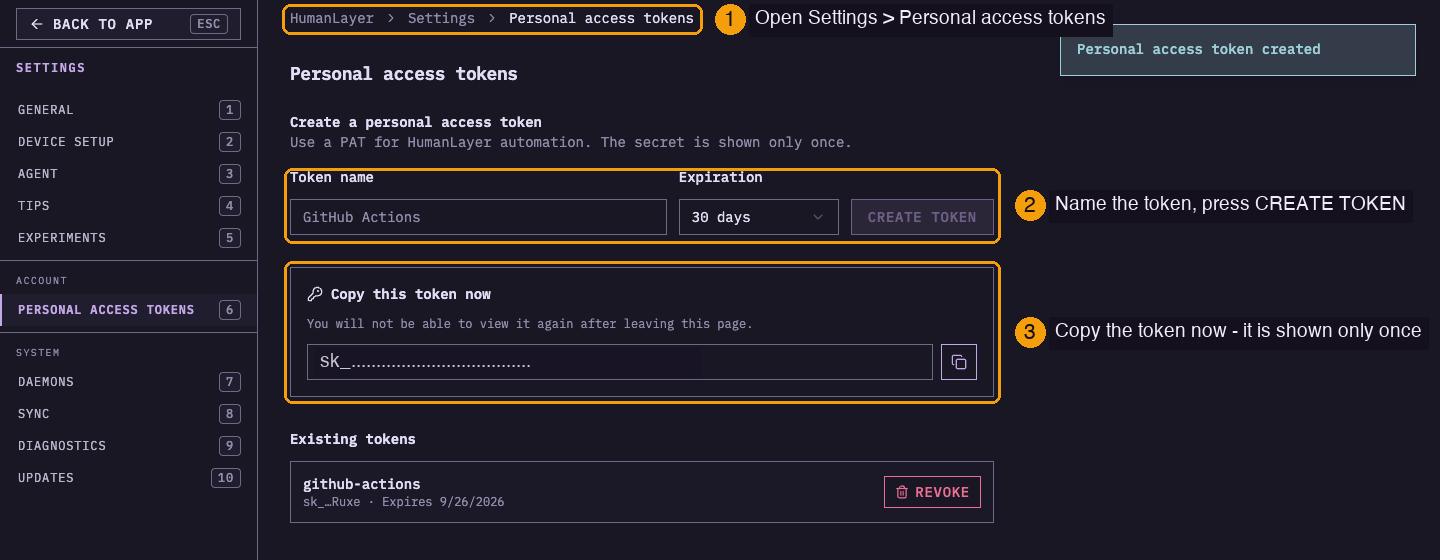
- Go to Settings > Account > Personal access tokens.
- Name the token, pick an expiration, and press Create token.
- Copy the token immediately. HumanLayer cannot show its full value again.
Store the token in your automation platform's secret store. Never commit it.
The CLI command
Run the command from the directory the agent should work in. The coding agent also needs its provider credential in the environment — ANTHROPIC_API_KEY for the default Claude setup.
humanlayer automation run \
  --pat "${HUMANLAYER_PAT}" \
  --ensure-task readme-greeter \
  --task-name "README greeter" \
  --session-name "Greeting run $(date +%Y-%m-%d)" \
  --metadata-file /tmp/humanlayer-run.json \
--prompt-file automation/greeting.md--patauthenticates the run.--ensure-taskplus--task-namecreate the task on the first run and reuse it on later runs.--session-namelabels this run's session. Include something unique such as a run ID or a date.--metadata-filewrites the preparedtaskIdandsessionIdas JSON for later automation steps. Use those IDs to build canonical/tasks/:taskId?deep=trueand/sessions/:sessionId?deep=trueapp links.--prompt-filereads the agent instructions from a file in the checkout. Use--promptfor short inline text.--shutdown-oncontrols when the daemon exits. The defaultinactivitywith--inactivity 2mkeeps the daemon up until two minutes after the last activity, so you can send Cloud follow-ups; each interaction resets the timer. Use--shutdown-on stopto exit as soon as the session is ready for input.--provider,--model,--coding-agent, and--thinkingselect the agent. The defaults use Claude through the Anthropic API.
Example: GitHub Actions
GitHub Actions is the most common home for these runs: the checkout, secret store, schedule triggers, and gh CLI are all built in.
Save the secrets
In the GitHub repository, go to Settings > Secrets and variables > Actions. Create a repository secret named HUMANLAYER_PAT with the one-time token value, and make sure the provider credential — here ANTHROPIC_API_KEY — exists as a secret too.
A hello-world workflow
This workflow runs a session that adds a greeting to the README, then commits, pushes a new branch, and opens a pull request — all from inside the session, using the gh CLI with the job's GITHUB_TOKEN.
name: HumanLayer hello world

on:
  workflow_dispatch:

permissions:
  contents: write
  pull-requests: write

jobs:
  hello-world:
    runs-on: ubuntu-latest
    steps:
      - uses: actions/checkout@v5
        with:
          fetch-depth: 0

      - name: Configure git user
        run: |
          git config user.name "github-actions[bot]"
          git config user.email "github-actions[bot]@users.noreply.github.com"

      - uses: oven-sh/setup-bun@v2

      - name: Run automation
        env:
          HUMANLAYER_PAT: ${{ secrets.HUMANLAYER_PAT }}
          ANTHROPIC_API_KEY: ${{ secrets.ANTHROPIC_API_KEY }}
          GH_TOKEN: ${{ secrets.GITHUB_TOKEN }}
        run: |
          cat > /tmp/prompt.md <<'EOF'
          Add a small fun greeting to the README.

          Then publish the change yourself:

          1. Create a branch named `hello-world/<today's date>`.
          2. Commit the change.
          3. Push the branch with `git push --set-upstream origin <branch>`.
          4. Open a pull request with `gh pr create --fill`.
          EOF

          bunx @humanlayer/cli@latest automation run \
            --pat "${HUMANLAYER_PAT}" \
            --ensure-task hello-world \
            --task-name "Hello world" \
            --session-name "Hello world ${GITHUB_RUN_ID}" \
            --metadata-file /tmp/humanlayer-run.json \
            --prompt-file /tmp/prompt.md
The permissions block gives GITHUB_TOKEN the rights the agent needs to push the branch and open the pull request. The GH_TOKEN variable makes that token available to git and gh inside the session.
You can also keep git orchestration out of the prompt and do it in the workflow instead. Add a step after Run automation that commits whatever the session changed:
- name: Commit changes and open a pull request
  env:
    BRANCH: humanlayer/${{ github.run_id }}
    GH_TOKEN: ${{ secrets.GITHUB_TOKEN }}
  run: |
    git checkout -b "$BRANCH"
    git add -A
    git diff --cached --quiet && exit 0
    git commit -m "chore: apply HumanLayer automation"
    git push --set-upstream origin "$BRANCH"
    gh pr create --fill
Growing into a recurring agent
The hello-world example is the whole mechanism. The HumanLayer team's production agents add a few workflow-level patterns on top:
- A schedule trigger. Add a
schedulecron entry next toworkflow_dispatchso the agent runs daily. - A no-op guard. Before running the agent, check
gh pr list --label <agent-label>and exit early when an open agent PR already exists. One unreviewed PR at a time keeps the queue honest. - A concurrency group. Set
concurrencyon the workflow so a manual run cancels an in-flight scheduled run instead of racing it. - Agent memory. Keep a markdown file such as
.github/agent-memory/<agent>.mdin the repository and include its contents in the prompt. When a run teaches you something, update the file in a PR and every later run knows it. - An iteration loop. Listen for
issue_commentevents on agent PRs. When a maintainer comments/iteratewith feedback, check out the PR branch, build a prompt from the PR discussion and the feedback, and runautomation runagain to update the same branch.